
What is launchpad3d.ca (Launchpad) and how do I use it to slice files for my InkSmith 3D printer?
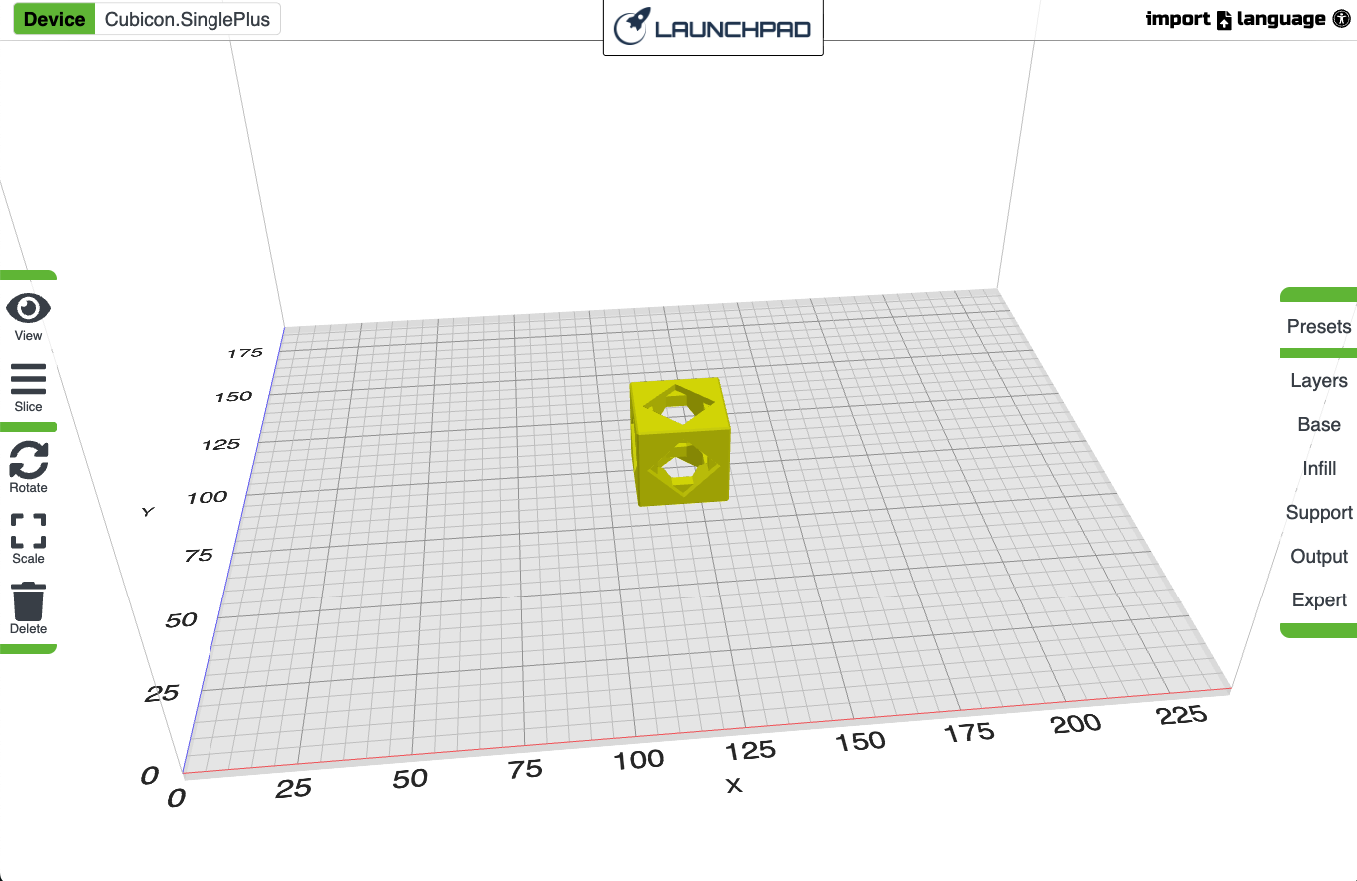
Launchpad is InkSmith's free slicing software. It runs entirely in a web browser at launchpad3d.ca, so there is nothing to install, no licence to buy, and no admin password to chase down. It works on internet-connected Chromebooks, Windows and Mac devices, which makes it a good fit for classrooms and shared library carts.
Launchpad is included free with all InkSmith 3D printers.
What slicing is (and why you can't skip it)
A 3D printer cannot read an STL or other CAD file. Slicing is the step that cuts your model into layers and writes out the machine instructions — G-code — that tell the printer where to move, how fast, and how much filament to push.
If you copy an STL straight onto a USB stick or SD card, the file simply won't appear on your printer's screen. Slice first, then transfer.
Which printers does Launchpad support?
Launchpad is built for InkSmith 3D printers only. The machines it supports appear in the Devices list inside the app, and that list is the authoritative one — if a printer isn't in it, don't try to force a profile.
Printers we can confirm are covered include the InkSmith Makerforge, the InkSmith Orbit, and the Cubicon printers InkSmith sells and supports (such as the Cubicon Single Plus, Style, Style Plus and Flashforge AD5M Pro).
If you have a printer that InkSmith sells but that is not in the Devices list — for example a third-party machine with its own ecosystem — use that manufacturer's own slicer instead. A profile from the wrong machine can produce a print that misses the print bed, crashes the nozzle into the bed, or runs the wrong temperatures.
How to use Launchpad, step by step
- Go to launchpad3d.ca in your browser.
- Click Devices in the top-left corner and select the 3D printer you'll be printing on. Do this first — your choice sets the print bed size and the machine's other limits, so everything after this depends on it.
- Get your model ready. Download an STL (for example from a model-sharing site) or export one from your CAD tool.
- Click Import in the top right, choose your file and click Open. Your model appears on the virtual print bed.
- Move, rotate and scale the model as needed so it sits flat on the bed and fits inside the print area.
- Adjust the print settings you care about — Launchpad keeps the essentials up front rather than burying you in advanced options.
- Hover over the Slice button and click Export. Launchpad re-slices the model and shows you a summary, including estimated print time, filament used and the file name.
- Click Download to save the file.
The file extension you get depends on the device you selected in step 2 — it may be .gcode or .hvs. These files are not interchangeable. A file sliced for one printer will not work correctly on another, even if it opens.
Getting the file onto the printer
Copy the downloaded file to a USB drive or SD card, then insert it into your printer and select it from the machine's interface.
A few habits that save headaches:
- Keep the card or drive tidy — a small number of clearly named files is much easier for students to navigate than a folder of
part_final_v7. - Insert and remove the card or USB drive while the printer is idle, not mid-print.
- Before the first layer goes down, make sure the print bed is clean and clear of tools, clips and leftover filament. The bed and nozzle get hot — don't reach into the machine while it's heating or printing.
If the printer doesn't see your card at all, see the existing article "Why doesn't my 3D printer/laser detect the memory card?" in this help centre.
Known issue: STM error on the Orbit
If you get an STM error when you try to print an Orbit file sliced in Launchpad, it's caused by a setting that is switched on by default. In Launchpad, choose Expert in the side menu, find the Engage Dwell setting and turn it off, then re-slice and export the file. This is documented on the InkSmith FAQ.
Launchpad vs. the other slicers we support
- Launchpad — recommended for InkSmith printers generally. Browser-based, no install, Chromebook-friendly.
- Cura for Cubicon — InkSmith offers a specialised Cura build, but full support is only offered for the InkSmith Makerforge. See the existing article "Cura Slicer for InkSmith and Cubicon 3D Printers".
- Cubicreator — Cubicon's own host program for Cubicon printers. It must be installed on a Windows PC, so it isn't an option on Chromebooks.
For an overview of design tools and slicers together, see the existing article "What software should I use with the 3D Printer?"
Still stuck?
InkSmith also has a video walkthrough of Launchpad on YouTube and a written Launchpad tutorial. If your file won't slice, won't download, or won't show up on the printer, contact our technical support team with the model file and the printer you selected in the Devices list.